
This guide describes how to connect to a Servermall Cloud Services (SMCS) virtual machine (VDS/VPS):
- through the web console;
- over SSH with username and password authentication;
- over SSH with key pair authentication.
Prerequisites
Before connecting, make sure that the following conditions are met:
- You have an account in the SMCS Client Area. The registration process is described in the “Creating an Account” guide.
- You have ordered a SMCS virtual machine. The ordering process is described in the “How to order a virtual machine” guide.
- You have signed in to the SMCS Client Area:
- If two-factor authentication (2FA) is not enabled, use the “Signing in to the control panel” guide.
- If 2FA is enabled, use the “Signing in to the control panel with 2FA” guide.
Connecting to a virtual machine through the web console
You can connect to the operating system of a virtual machine through the web console in the SMCS service control panel.
This method is available even if the network settings inside the virtual machine operating system are configured incorrectly. A disadvantage of connecting through the web console is that you cannot use the clipboard to copy and paste text.
To connect, complete the following steps:
- In the main menu, select “Services“.
The “My Products & Services” page will open. - From the list of services, select the virtual machine you wish to connect to, then click the “Manage service” button (the eye icon) in the row for that machine.
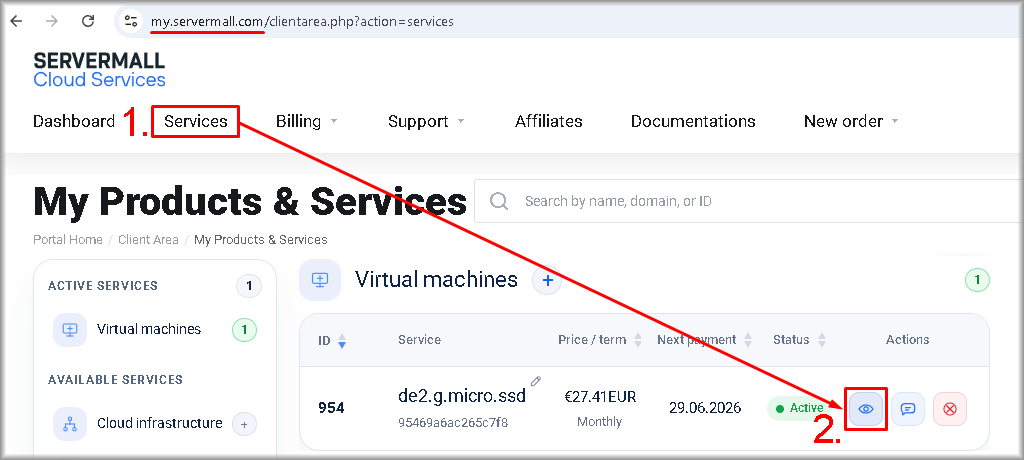
The control panel for the selected virtual machine will open. - In the “Service Management” section, click the “Console” button.

The web console will open in a new browser tab. - Log in to the operating system of the virtual machine using the username and password from the email from SMCS notifying you that the virtual machine is ready.

After successful authentication, the command line of the virtual machine operating system opens.
Connecting over SSH
The OpenSSH server is pre-installed on all SMCS virtual machine images. It provides secure remote access over SSH.
Two authentication methods are available:
- key pair authentication;
- username and password authentication.
The recommended connection method is key pair authentication. Password-based connections should be used only when required. After configuring key-based access, we recommend disabling sign-in with a username and password.
Information about installing and configuring the OpenSSH client is provided in the “Connecting with OpenSSH” guide.
Connecting over SSH with password authentication
By default, SSH connections with username and password authentication are allowed on SMCS virtual machines. This is a simple connection method, but it is less secure than key pair authentication.
To connect, use the credentials from the email notifying you that the virtual machine is ready.
To connect, complete the following steps:
- Open a terminal:
- On Linux or macOS, use a terminal.
- On Windows, use PowerShell or Windows Terminal.
- In the email notifying you that the virtual machine is ready, find the values of the “Username” and “Server IP” fields. Use them in the command:
ssh <Username>@<Server_IP>
For example:ssh [email protected]
- When you connect for the first time, the following prompt appears:
“Are you sure you want to continue connecting (yes/no/[fingerprint])?“
Type “yes” and press “Enter“. - When the system prompts for the password, enter the value from the “Password” field in the email notifying you that the virtual machine is ready and press “Enter“. The password is not shown on screen as you type. This is normal terminal behaviour.
The illustration below shows an example of connecting to a virtual machine using PowerShell.
After successful authentication, the command line of the virtual machine operating system opens.
Connecting over SSH with key pair authentication
Key pair authentication is more secure than password authentication, and we recommend using this authentication method.
After configuring key-based access, we recommend disabling sign-in with a username and password.
To connect, complete the following steps:
- In the main menu, select “Services“.
The “Products/Services” page opens. - In the service list, select the virtual machine that you want to connect to and click “Manage Service” (the eye icon) in the row with this machine.

The virtual machine service control panel opens. - Click the “Download Private Key” button to download the private key.
- Do not store the private key on file systems that do not support per-user access permissions. For example, FAT32, which is often used on USB drives, memory cards, and external drives, is not suitable for storing private SSH keys.
- The private key file must be accessible only to its owner. If other users have access to it, OpenSSH will not use this key.
- Do not copy the private key file unless necessary. When copied, the file may inherit the access permissions of the destination directory, which can cause OpenSSH to refuse to use the key.
- Do not save the private key in shared directories or in directories that are accessible to other accounts.
- Store the private key in a directory that is accessible only to the current user. We recommend using the following directories:
- On Windows, use “%USERPROFILE%\.ssh\”, for example “C:\Users\YourUserName\.ssh\”.
- On Linux and macOS, use “~/.ssh”.
Important:

- Open PowerShell or a terminal, depending on which operating system you use:
- For Linux and macOS, use a terminal.
- For Windows, use PowerShell or Windows Terminal.
- Run the connection command:
ssh -i <Key> <Username>@<IP-address>
where you replace the placeholders with your own values:
- <Key> – the path to the private key downloaded from the “Virtual Machine” service control panel.
- <Username> – the username for the SSH connection. Use the value from the “Login” field in the “Virtual Machine” service control panel or from the email notifying you that the virtual machine is ready. By default, SMCS virtual machines use the root user.
- <IP-address> – the external IPv4 address of the virtual machine. You can find it in the “IPv4” field in the “Virtual Machine” service control panel or in the email notifying you that the virtual machine is ready.
For example: - For Windows:
ssh -i "c:\users\username\.ssh\5912_private.pem" [email protected] - For Linux and macOS:
ssh -i "/home/username/.ssh/5912_private.pem" [email protected]
- <Key> – the path to the private key downloaded from the “Virtual Machine” service control panel.
- When you connect for the first time, the following prompt appears:
“Are you sure you want to continue connecting (yes/no/[fingerprint])?“
Type “yes” and press “Enter“.
If the following message appears when you connect: “It is required that your private key files are NOT accessible by others. This private key will be ignored.”
Make sure that the key is saved in a directory that other users cannot access, as described above in the step about downloading the private key, and set access permissions for the current user only, denying access to all other users.
Specify the full path to the key file or go to the directory containing the key, then run the commands for your operating system:
- For Linux and macOS:
chmod 600 <Key>where you replace <Key> with the path to the private key file.
For example:chmod 600 5912_private.pem
- For Windows (PowerShell or Windows Terminal):
icacls "<Key>" /inheritance:r
icacls "<Key>" /grant:r "${env:USERNAME}:(R)"
where you replace <Key> with the path to the private key file.
For example:icacls "5912_private.pem" /inheritance:r icacls "5912_private.pem" /grant:r "${env:USERNAME}:(R)"