
This guide describes the procedure for disabling two-factor authentication (2FA) when logging into your Servermall Cloud account. 2FA increases the security of your account, and we do not recommend disabling it.
Prerequisites
- You must have a registered Servermall Cloud account. For information on how to create one, see the guide “Creating an Account”.
- Your account must have two-factor authentication (2FA) enabled. For information on how to enable it, see the guide “Enabling 2FA on Your Account”.
Disabling 2FA on Your Account
- Log in to the Servermall Cloud Control Panel. For information on how to complete 2FA and access the Control Panel, see the guide “Signing in to the Control Panel Using 2FA”.
- Click your profile avatar or name (“user” if the profile is not filled in) in the upper-right corner of the Servermall Cloud Control Panel.
A dropdown account menu will open. - Select “Security Settings” in the dropdown menu.

You will be redirected to the “Security Settings” page. - Go to the “Two-Factor Authentication” tab.
- Click the button “Click Here to Disable”.

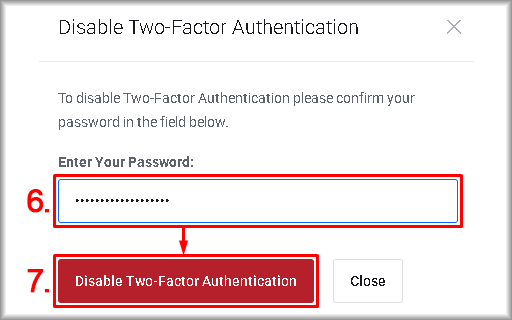
The “Disable Two-Factor Authentication” window will open. - In the “Enter Your Password” field, type your account password to confirm disabling two-factor authentication.
- Click the “Disable Two-Factor Authentication” button.
Two-factor authentication will now be disabled for your account.
On the “Security Settings” tab, you will see the 2FA status as “disabled” — this confirms that two-factor authentication has been successfully turned off.