
OpenStackClient (OSC) is a unified CLI client for managing OpenStack services from the terminal. It is convenient for automation, scripting, and performing advanced operations that are not available in the cloud infrastructure control panel.
In this section, we will look at ways to install OSC on various operating systems, including Windows, Linux, and macOS. We will also show how to install Python and other dependencies required for OSC to work.
Installing on Windows
- Install Python
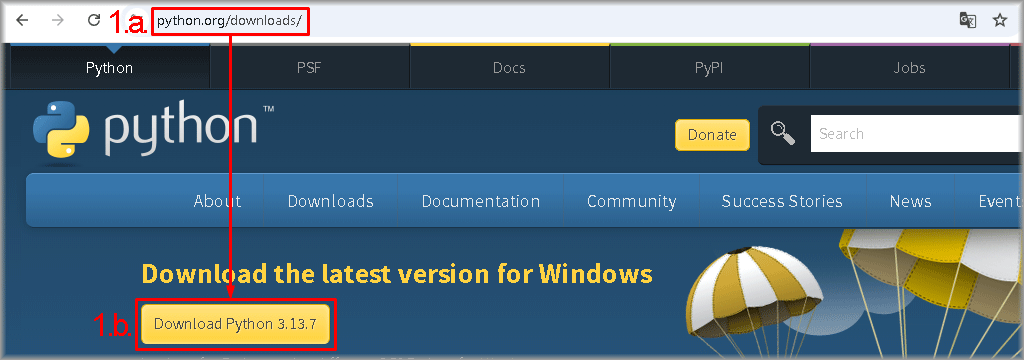
- Go to the Downloads section on the official Python.org website.
- Click Download Python 3.xx.xx in the Download the latest version for Windows section.
- Save the Python installer and run it.
- Check the Add python.exe to PATH box.
- Click Install Now.

Note: If you do not check Add python.exe to PATH, you will need to manually add the path to Python to the environment variables. - Verify the installation by running the following commands:
      python --version
py --version
py -m pip --version
Expected output and how to interpret it:- python –version — prints Python 3.x.x, verifying PATH; if there is an error, add the path to Python to the PATH environment variable.
- py –version — prints Python 3.x.x, verifying the Python Launcher; if there is an error, reinstall Python with the Install launcher option.
- py -m pip –version — prints pip x.x (python 3.x), verifying pip; if there is an error, run py -m ensurepip –upgrade and update pip.
- Go to the Downloads section on the official Python.org website.
- Install Microsoft C++ Build Tools
- Go to visualstudio.microsoft.com.
- Scroll down the page to the Tools for Visual Studio section and, in the Build Tools for Visual Studio 202x card, click Download.

- Save the installer locally.
- Run the downloaded installer with administrator rights.
- Check Desktop development with C++.
- Click Install.

- Go to visualstudio.microsoft.com.
- Install OpenStackClient
- Open Command Prompt (CMD) or PowerShell.
- Run:
pip3 install python-openstackclient - Optional: Verify the installation by running:
If the installation was successful, the version of the installed OpenStackClient will be displayed.openstack --version
- Open Command Prompt (CMD) or PowerShell.
Installing on macOS
- Update the package manager:
brew update
- Install Python:
brew install python
- Install OpenStackClient:
Alternative option:brew install openstackclientpython3 -m venv ~/.venvs/osc . ~/.venvs/osc/bin/activate pip install --upgrade pip pip install python-openstackclient
Installing on Linux
This section provides instructions for installing OpenStackClient for various Linux distributions, as well as a universal installation method suitable for any distribution. In all cases, Python must be installed beforehand; its installation procedure is also described here.
After completing the steps, you will be able to verify the correctness of the Python and OpenStackClient installation using the universal method described below.
Debian / Ubuntu
- Update the package manager:
sudo apt update
- Install Python:
sudo apt install -y python3 python3-pip python3-venv
- Install OpenStackClient:
sudo apt install -y python3-openstackclient
RHEL 9
- Update packages and the repository cache:
sudo dnf upgrade --refresh -y
- Install Python:
sudo dnf install -y python3 python3-pip
- Enable RDO repositories:
For RHEL distributions, you must enable CodeReady Builder (CRB), otherwise some dependencies may be unavailable. If CRB is already enabled (or the system is registered with full access), you can skip this step.sudo subscription-manager repos \ --enable=rhel-9-for-x86_64-baseos-rpms \ --enable=rhel-9-for-x86_64-appstream-rpms \ --enable=rhel-9-for-x86_64-supplementary-rpms \ --enable=codeready-builder-for-rhel-9-x86_64-rpms
- Install OpenStackClient:
sudo dnf install -y https://trunk.rdoproject.org/rdo_release/rdo-release.el9s.rpm sudo dnf clean all && sudo dnf makecache sudo dnf install -y python3-openstackclient
AlmaLinux 9 / Rocky Linux 9
- Update packages and the repository cache:
sudo dnf upgrade --refresh -y
- Install Python:
sudo dnf install -y python3 python3-pip
- Enable RDO repositories:
For EL9 distributions (including AlmaLinux and Rocky Linux), you must enable CodeReady Builder (CRB). If CRB is already enabled, you can skip this step.sudo dnf install -y dnf-plugins-core sudo dnf config-manager --set-enabled crb
- Install OpenStackClient:
sudo dnf install -y https://trunk.rdoproject.org/rdo_release/rdo-release.el9s.rpm sudo dnf clean all && sudo dnf makecache sudo dnf install -y python3-openstackclient
CentOS Stream 9
- Update packages and the repository cache:
sudo dnf upgrade --refresh -y
- Install Python:
sudo dnf install -y python3 python3-pip
- Enable RDO repositories:
For EL9 distributions (including CentOS Stream 9), you must enable CodeReady Builder (CRB). If CRB is already enabled, you can skip this step.sudo dnf install -y dnf-plugins-core sudo dnf config-manager --set-enabled crb
- Install OpenStackClient:
Important: The centos-release-openstack-<release> package must match the version of OpenStack deployed in the cloud. In the example provided, the centos-release-openstack-ussuri package is used for the OpenStack Ussuri release, which was current at the time of writing. If the cloud is upgraded, replace the package with the one corresponding to the release, for example:sudo dnf install -y centos-release-openstack-ussuri sudo dnf clean all && sudo dnf makecache sudo dnf install -y python3-openstackclien- centos-release-openstack-caracal — for OpenStack Caracal (2024.1, SLURP).
- centos-release-openstack-dalmatian — for OpenStack Dalmatian (2024.2).
- centos-release-openstack-epoxy — for OpenStack Epoxy (2025.1, SLURP).
Fedora
- Update repositories and the system:
sudo dnf upgrade --refresh -y
- Install Python:
sudo dnf install -y python3 python3-pip
- Install OpenStackClient:
sudo dnf install -y python3-openstackclient
openSUSE Tumbleweed
- Refresh repositories and update the system:
sudo zypper refresh sudo zypper dup -y
- Install Python:
sudo zypper install -y python3 python3-pip
- Install OpenStackClient:
sudo zypper install -y python3-openstackclient
openSUSE Leap / SLES
- Refresh repository metadata:
sudo zypper refresh
- Install Python:
sudo zypper install -y python3 python3-pip
- Install OpenStackClient using the universal method:
      python3 -m venv ~/.venvs/osc
. ~/.venvs/osc/bin/activate
pip install --upgrade pip
pip install python-openstackclient
Arch Linux / Manjaro
- Update repositories and the system, then install Python:
sudo pacman -Syu --noconfirm python python-pip
- Install OpenStackClient:
sudo pacman -S --noconfirm python-openstackclient
Alpine Linux
- Update the package list and the system:
sudo apk update && sudo apk upgrade
- Install Python and build packages:
sudo apk add --no-cache python3 py3-pip
- Install OpenStackClient:
      pip3 install --upgrade pip
pip3 install python-openstackclient
Note: If the installation fails while building dependencies (cryptography, lxml, etc.), install the packages:sudo apk add --no-cache build-base libffi-dev openssl-dev \ rust cargo python3-dev libxml2-dev libxslt-dev
Universal installation method
This method is suitable for installing OpenStackClient (OSC) from PyPI into a per‑user isolated environment using pipx. With this approach, the openstack commands will be available directly from the terminal, without activating a virtual environment.
Prerequisites:
The system must have:
- Python 3 (3.9+ recommended);
- pip for Python 3;
- the venv module (required for pipx to work).
Verify that everything is present:
         python3 --version
python3 -m pip --version
Installation into a Per‑User Isolated Environment
When installing OpenStackClient into a per‑user isolated environment, use the following steps to manage the environment.
- Install pipx for your user account:
python3 -m pip install --user pipx
- Add ~/.local/bin to PATH (if it hasn’t been added yet):
      python3 -m pipx ensurepath
export PATH="$HOME/.local/bin:$PATH"
- Install OpenStackClient into the isolated environment via pipx:
python3 -m pipx install python-openstackclient
Updating python-openstackclient
Update openstackclient with the command:
python3 -m pipx upgrade python-openstackclient Note: The OpenStackClient version is selected automatically depending on the installed Python version. To get the most up‑to‑date OSC version, update Python beforehand to the latest release supported by your OS.
Verifying the installation on Linux and macOS
- Check Python:
If Python is installed correctly, this command will print the Python version, for example: “Python 3.12.7”.python3 --version - Check pip:
If the Python package manager was installed correctly, this command will print the pip version, for example: “pip 24.0”.pip3 --version - CheckOpenStackClient:
If the installation was successful, the OSC version will be printed, for example: “openstack 8.2.0”.openstack --version
What’s next?
After OpenStackClient is installed, you can obtain authentication data for the cloud infrastructure and use them to connect, as described in the guide: “OpenStackClient Authentication via Environment Variables”.