
This guide describes the procedure for recovering a forgotten password for your account.
Prerequisites
- You must have a registered Servermall Cloud account. For more information on how to create an account, see the guide: Creating an Account“.
- You must have access to the email address associated with the account for which you want to restore the password.
Procedure
- Go to the website cloud.servermall.com.
- Click the “Sign in/up” button located in the upper-right corner of the page.

The “Sign in” window will open. - Enter your email address in the “E-mail” field.
- Click the link “I forgot my password”.

A message “Reset Link Sent” will appear on the screen, and a message with a reset link will be sent to the specified email address.
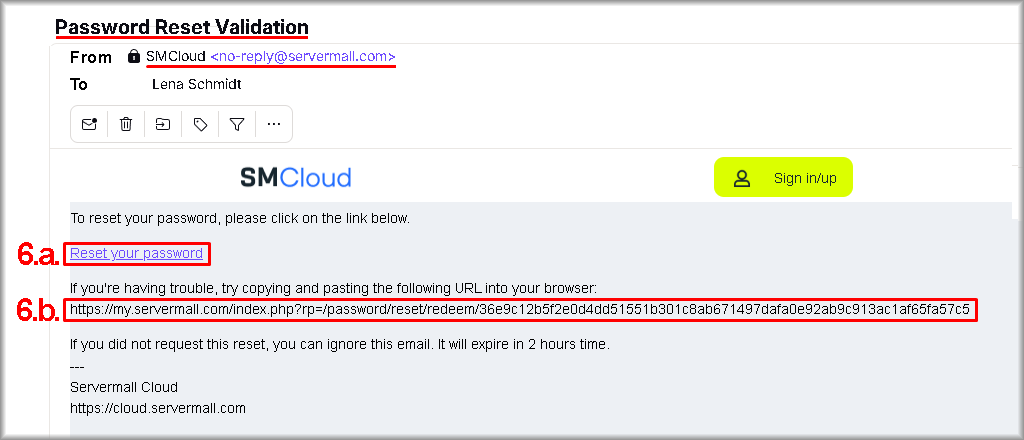
- Open the email titled “Password Reset Validation” from SMCloud <[email protected]>.
- In the body of the email:
- Click the link “Reset your password”.
If the link does not open, go to step b. - Copy the link from the email, paste it into the address bar of your browser, and open it.
The “Lost Password Reset” window will open.
- Click the link “Reset your password”.
- Create a new password and enter it in the “New Password” field.
The password must:- contain at least 8 characters;
- include both uppercase and lowercase letters;
- contain numbers.
- Re-enter the password in the “Confirm New Password” field.
- Click “Save Changes”.

If you see the message “Password Reset Successful”, your old password has been reset and replaced with a new one. - Click the “Click here” link.

After that, you will be redirected to the Servermall Cloud Control Panel.