
In this section, we explain how to log in to Servermall Cloud’s Cloud Infrastructure Control Panel.
Prerequisites
- Servermall Cloud account.
You must have a registered account in your Servermall Cloud dashboard. If you do not yet have an account, create one following the guide “Creating an Account“. - Cloud infrastructure service activated.
You need to order the Cloud Infrastructure service via your Servermall Cloud dashboard and wait for confirmation that it has been activated. A notification that your infrastructure is ready will be sent to your email or appear in your dashboard.
I. Retrieving authentication details
Your login credentials are available in the Cloud Infrastructure service panel. To obtain them, follow these steps:
- Log in to the Servermall Cloud dashboard:
- If you do not use two-factor authentication (2FA), see “Signing in to the Control Panel”.
- If 2FA is enabled, see “2FA Signing in to the Control Panel”.
- Click on “Services” in the main menu.
You will be taken to the “My Products & Services” page, which lists all your active services. - Select the “Cloud Infrastructure” service that you wish to authenticate with.

This will open the service’s control panel. - Go to the “Server Information” section, where you will find all the details required for authentication.
By default, the Cloud Infrastructure password is hidden. To make it visible, click on the “******”.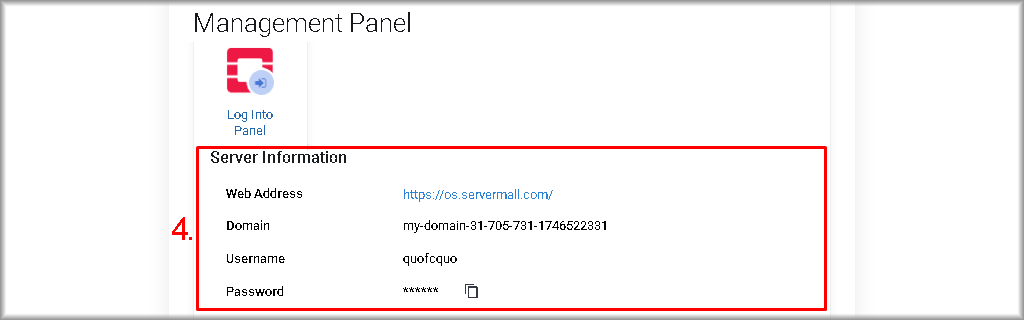
II. Logging into the Control Panel
Using the details from the “Server Information“ section obtained at Step 4 of Section I, follow these steps:
- Open your web browser and paste the value from the “Web address” field into the address bar, then press “Enter”.
The login page for the Servermall Cloud Control Panel will open. - In the “<Username> or…” field, enter the “Username” and “Domain” values in the following format:
<username>@<domain>
For example:quofcquo@my-domain-31-705-731-1746522331
- In the “Password” field, enter the password you retrieved in Section I.
- Click “Log In”.

After you have authenticated, you will be taken into the cloud infrastructure control panel (cloude console).