
Payment Methods
The “Payment Methods” menu item is intended for managing payment methods for Servermall Cloud services: add payment methods, set the default method for automatic charges and payment of new invoices, update details, and delete payment methods. Below we explain how to add a bank card, change its details, and delete it.
Adding a new card
You can add one or more bank cards to pay for services, so that you can automate charges and speed up the process of ordering new services.
- Click the “Add New Credit Card” button.
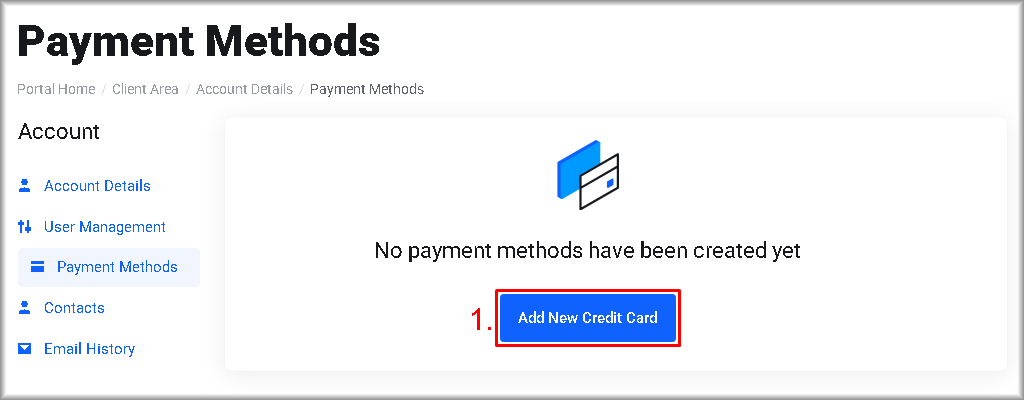
The “Add New Payment Method” window will open. - Enter the bank card information: “Card Number“, “Expiry Date” and “CVC“.
Optional:
If the card is connected to “Link” from “Stripe“, you can fill in the bank card details by clicking “Autofill“.
If the card is not connected to “Link“, then after entering the details you can connect it by clicking “Save with Link“ - Select the holder of the card you are adding from the “Billing Address” list and proceed to the next step.
If the bank card holder is not in the list, click “Add new billing address“. After this, you will be redirected to the “Add new billing address” page, where you should do the following:- Fill in the “First Name“, “Last Name” and “Phone Number” fields with the cardholder’s details.
- Enter data in the “Address 1“, “Address 2” (optional), “City“, “Country“, “State/Region“, “Zip Code” fields with the address information of the person or legal entity to whom the bank card is issued.
- If the card is issued to a legal entity, provide the company details in the “Company Name” and “VAT Number” fields.
- Click “Save Changes” to save the cardholder’s details.

After saving the data, you will be returned to the “Add New Payment Method” window, where you should select from the “Billing Address” list the cardholder you added.
- Fill in the “First Name“, “Last Name” and “Phone Number” fields with the cardholder’s details.
- Click the “Save Changes” button to save the bank card details.
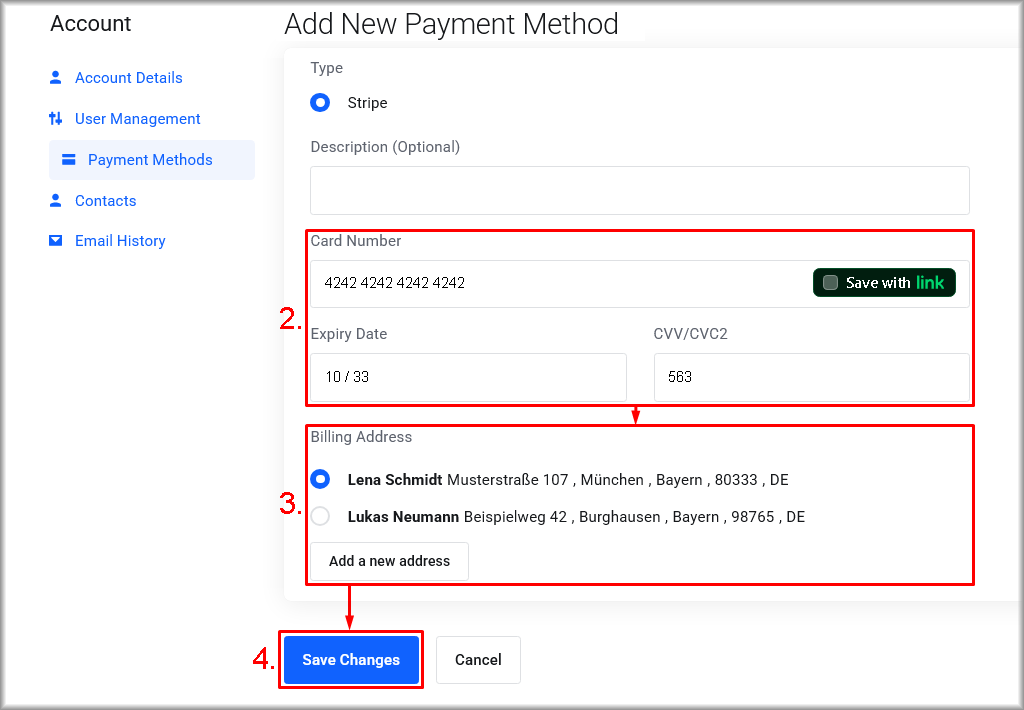
The card you have added will be available for paying for services and solutions.
Changing bank card details
You can update the card information, for example, when it is reissued. To do this, follow these steps:
- In the row with the card whose details you want to change, click the pencil icon.
A window with the card data will open. - Make the necessary changes to the card details.
- Click “Save Changes“.
The changes to the card details will be saved.
Deleting a bank card
Before deleting a card, make sure another payment method is selected by default for services. This will help avoid suspension of your services at the end of the billing period.
To delete a bank card, follow these steps:
- In the row with the card you want to delete, click the bin icon.
A window will open to confirm deletion of the card. - Confirm that you want to delete the bank card.
The bank card will be deleted from your account.