
In the “Change Password” section, you can change your Servermall Cloud account password. The steps are described below.
How to change your password
- Enter your current password in the “Existing Password”.
- Create a new password and enter it in the “New Password” field. The password must:
- be at least 8 characters long (we recommend 12 or more);
- include uppercase and lowercase letters;
- include digits.
Alternatively:
You can generate a strong password automatically. Click the “Generate Password” button. In the window that opens, if required, change the password length by entering a value in the “Password Length” field and clicking “Generate new password“. To insert the generated password into the input fields and copy it to the clipboard at the same time, click “Copy to clipboard and insert“. Then proceed to step 4.
- Re-enter the new password in the “Confirm New Password” field.
Both fields will be highlighted in green if the passwords match; red highlighting indicates a mismatch — enter them again.
- Click “Save Changes“.
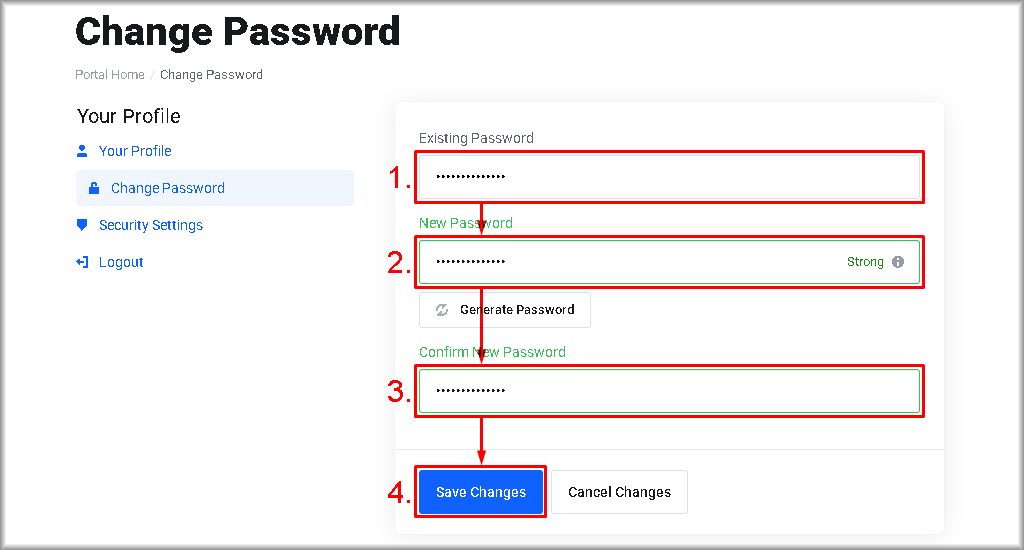
Your account password will be changed.